Loading Table of Contents...
How to Design a WordPress Website: A Simple Guide for Beginners
Learn how to design a WordPress website in eight steps, from domain, hosting, layout and content to SEO and ongoing maintenance.
Designing a WordPress website involves preparing a domain and hosting, installing WordPress, choosing a theme, creating content, adding plugins, and optimizing the site before launch. Connect Tech walks through eight steps from initial planning to launch, along with the checks that help make your site easy to manage and fit for its business goals.
Step 1: Define Your Goals and Prepare the Website Foundation
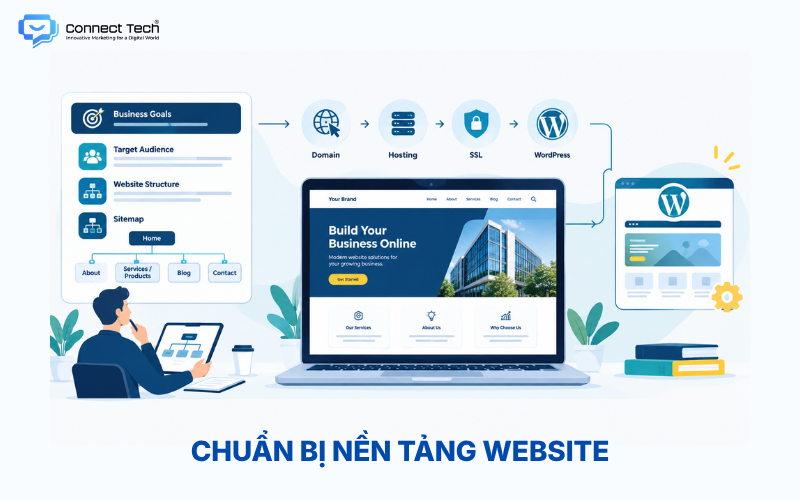
An effective WordPress website starts with clear goals, a target audience, and a site structure, rather than a theme. Businesses should decide whether the website will introduce the brand, generate leads, sell products, or publish content. That decision guides the choice of features and how information is organized.
A basic business website usually includes Home, About, Services or Products, Blog, and Contact pages. Create a sitemap before designing to determine how many pages are needed, how navigation is organized, and what content to prepare.
Once the structure is clear, prepare a domain, hosting, and SSL. The domain gives visitors an address, hosting stores the website's data, and SSL secures the connection between the site and its users. WordPress currently recommends a hosting environment with PHP 8.3+, MariaDB 10.11+ or MySQL 8.0+, and HTTPS.
Step 2: Install WordPress and Configure the Basics
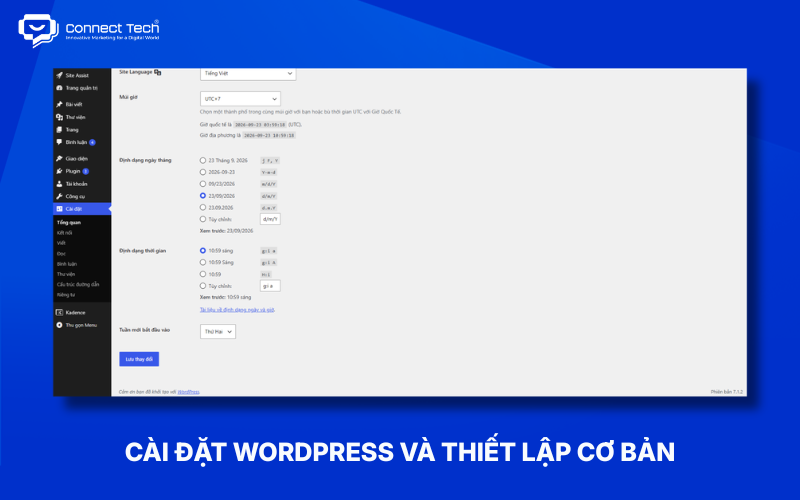
Building a WordPress site begins with installing WordPress on your hosting service and setting up essential system information. Many hosting providers offer automatic installers, so beginners can complete this step without working directly with source code or a database.
After installation, check the site title, tagline, language, time zone, HTTPS, and administrator accounts. Set permalinks to produce readable URLs. Also review the Search Engine Visibility setting so search engines can index the site when it goes live.
Creating a WordPress website therefore involves more than installing the software. These foundational settings affect site management, URL structure, and search visibility.
Step 3: Choose a Theme and Set Up the WordPress Design
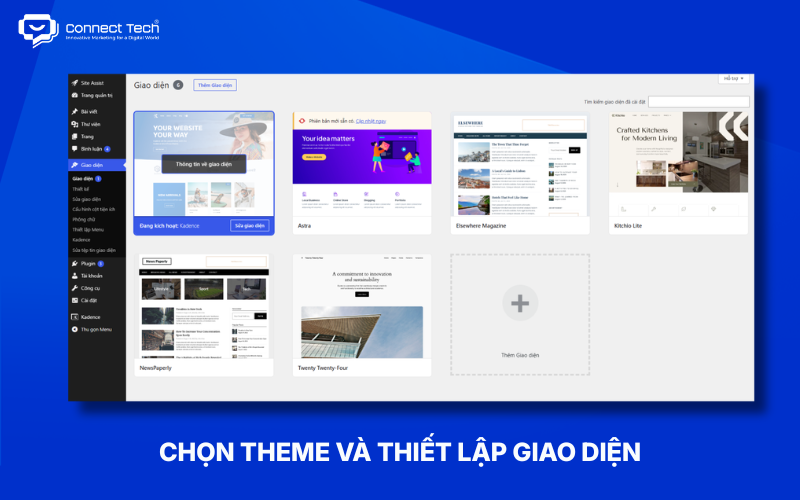
Choose a theme based on the type of website, brand identity, customization options, and performance, rather than attractive sample images alone. Business websites, online stores, blogs, and landing pages may call for different themes.
The WordPress Site Editor lets users edit headers, footers, navigation, templates, typography, colors, and layouts using blocks. It is particularly useful with block themes and allows users to manage the site's design within a consistent system.
WordPress 7.1 also supports Responsive Styles for block themes, allowing certain design properties to be configured by screen size. Users who need drag-and-drop editing and more visual customization can choose Elementor or another page builder, but these tools are not required for every website.
Step 4: Design the Header, Menu, Footer, and Navigation
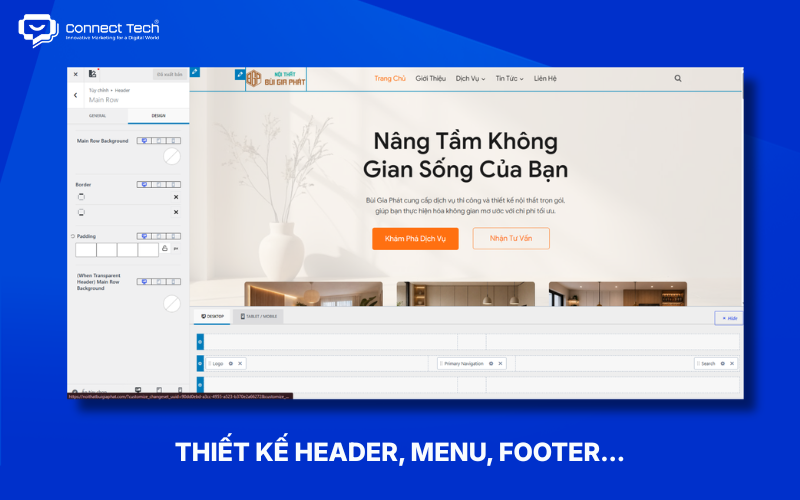
Once the overall design is in place, set up navigation so visitors can find information easily. The header typically contains the logo, main menu, and a call to action (CTA). The footer provides contact details, quick links, policies, and social media links.
The menu should reflect the sitemap without placing every page in the main navigation. Websites with many services or products should group related items, limit the number of top-level links, and help users understand where they are.
Check the menu on mobile as well. Limited screen space can affect how visitors open the menu and select pages.
Step 5: Create the Main Pages and Content
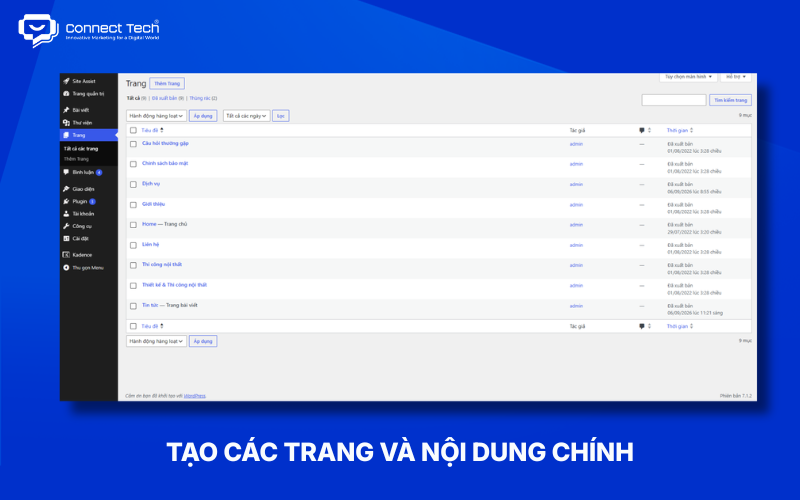
Next, create the pages in the sitemap, such as Home, About, Services, Products, Blog, and Contact. Each page should have a clear goal rather than simply gathering unrelated content in one layout.
Combine headings, images, product or service details, trust signals, and relevant CTAs. The homepage should guide visitors through a clear journey from the value you offer to your services, benefits, and the next action.
Use specific CTAs such as “Get a Quote,” “Book a Consultation,” or “View Products” to support conversions instead of relying only on generic buttons.
Step 6: Install Plugins for the Features You Need
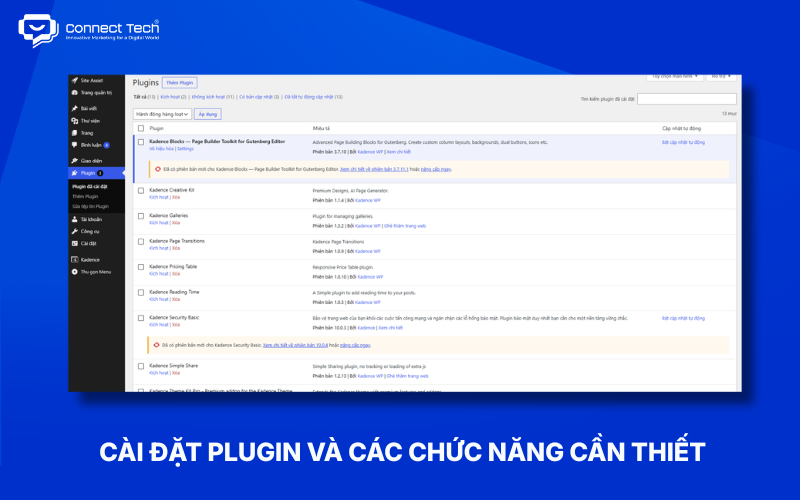
Add WordPress plugins to meet actual needs rather than installing as many as possible. A site may use plugins for SEO, forms, caching, security, backups, or e-commerce through WooCommerce.
|
|
|
|
|
|
|
|
|
|
|
|
|
|
|
|
|
|
|
|
|
|
|
|
|
|
|
|
Check compatibility with your theme and WordPress version before installing a plugin. Remove plugins you no longer use to reduce complexity and avoid operational issues.
Step 7: Optimize SEO, Responsive Design, and Performance
Plan SEO, speed, and responsive behavior as you build the WordPress website instead of waiting until it is complete. Set up URLs, headings, titles, meta descriptions, internal links, sitemaps, and schema markup to match your content and search intent.
Website performance depends on hosting, images, themes, plugins, CSS, JavaScript, and other factors. Optimize images, use suitable caching, and assess Core Web Vitals with dedicated tools.
Test responsive layouts on desktop computers, tablets, and smartphones. Text, buttons, images, menus, and spacing should remain usable at each screen size.
Step 8: Test, Secure, and Launch the Website
Finish a WordPress project by testing the site and preparing it for ongoing use. Check links, forms, menus, images, mobile layouts, speed, SSL, the 404 page, favicon, metadata, sitemap, and indexability.
Use strong administrator passwords, regularly update WordPress, themes, and plugins, and keep routine backups. WordPress recommends modern PHP and database versions to provide a suitable operating environment.
After launch, Google Search Console and Google Analytics can help you track indexing, traffic, content performance, and user behavior. Regular maintenance supports stability, security, and the site's ability to grow with your business.
An effective WordPress website starts with goals and structure, followed by design, content, features, SEO, and ongoing management. Beginners can build a basic site by following these eight steps in order. Projects requiring custom UX/UI, system integrations, advanced SEO, or room for substantial growth benefit from a professional design and development process.
Need a professional, SEO-friendly WordPress website that supports your business goals? Contact Connect Tech to discuss the right solution
Table of Contents
Related news

How to Design a WordPress Website: A Simple Guide for Beginners
Learn how to design a WordPress website in eight steps, from domain, hosting, layout and content to SEO and ongoing maintenance.

How to Design a Simple, SEO-Friendly Online Store
Learn how to design an online store, from site structure, UX/UI, product pages, and payments to SEO, platform selection, and prelaunch testing.

60 Website Design Terms Explained Simply for Beginners
Learn 60 website terms, from domains, hosting, UI/UX, frontend, and backend to SEO, security, and technology, with simple explanations for beginners.

Top 9 Easy-to-Use Website Builders That Require No Coding
Explore popular website builders, including WordPress, Wix, Webflow, Framer, and Shopify. Compare features and choose the right tool for your needs.

Top 9 Reputable Website Design Companies in Ho Chi Minh City
Compare nine reputable website design companies in Ho Chi Minh City by their strengths, services, technologies, and suitability to find the right web design partner.

Professional SEO-Optimized E-commerce Website Design
Professional SEO-optimized e-commerce website design with an optimized user experience, payment, order management, and operations. Full-service e-commerce website design tailored to your needs.