Loading Table of Contents...
How to Design a Landing Page with Free Tools
Learn how to design a landing page with LadiPage, Canva, WordPress, Wix, Google Sites, Mobio, SITE123, and GetResponse, from start to finish.
You can design a landing page with tools such as LadiPage, Canva, WordPress, Google Sites, Wix, Mobio, SITE123, and GetResponse without coding it from scratch. Connect Tech explains how to create a landing page with each tool, from choosing a template and planning the layout to editing content, adding calls to action (CTAs) and forms, checking responsive design, and publishing.
|
|
|
|
|
|
|
|
|
|
|
|
|
|
|
|
|
|
|
|
|
|
|
|
|
|
|
|
|
|
|
|
|
|
|
|
|
|
|
|
|
|
|
|
|
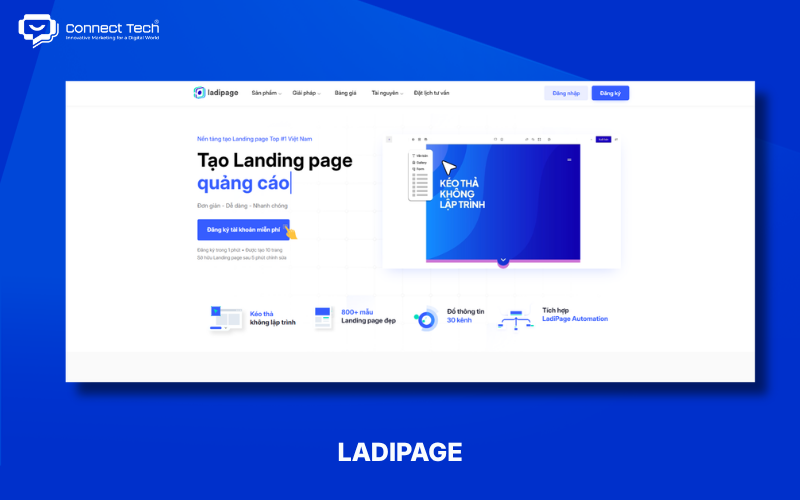
How to Design a Landing Page with LadiPage
LadiPage focuses on landing pages and suits businesses and marketers who need drag-and-drop tools to create sales pages, advertising pages, or lead capture pages. It also offers templates and AI tools to speed up page creation.
Steps to create a landing page with LadiPage:
- Create a new landing page: Sign in to LadiPage and choose to create a landing page.
- Choose a template or use AI: Select an existing template or use AI to generate an initial layout.
- Edit the content: Replace the headline, images, copy, CTA, and form to match your campaign.
- Check and publish: Review the desktop and mobile layouts, form, and links, then publish.
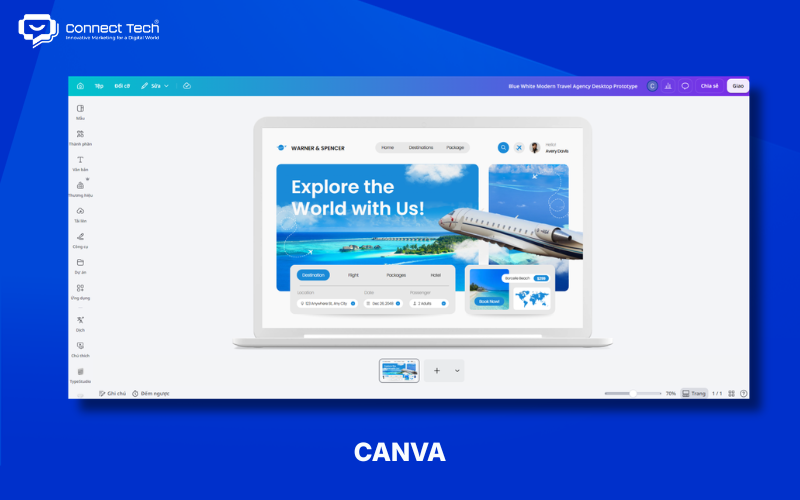
How to Design a High-Converting Landing Page with Canva
Canva suits beginners who want to create a landing page quickly using templates and drag-and-drop tools. The platform emphasizes visual design, typography, colors, and straightforward customization.
Steps to create a landing page with Canva:
- Find a template: Search for “Landing Page” in Canva and choose a suitable design.
- Edit the design: Replace the logo, colors, fonts, images, and copy.
- Add a CTA: Include buttons, links, or other elements needed for your conversion goal.
- Check and publish: Preview the landing page, review the layout, and share or publish it.
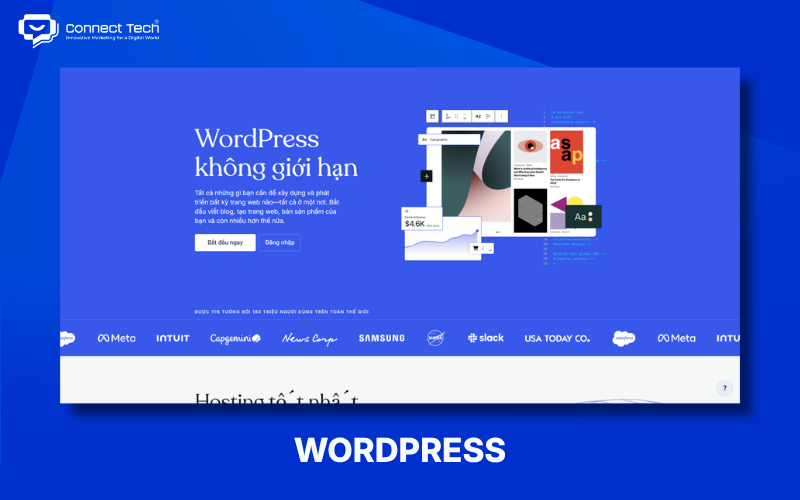
How to Design a Professional Landing Page with WordPress
WordPress suits businesses that want a landing page within a website they can expand over time. Use the Block Editor, a theme, or a page builder to create the layout and integrate SEO, forms, analytics, or marketing tools.
Steps to create a landing page with WordPress:
- Create a new page: Sign in to WordPress and add a page dedicated to the landing page.
- Choose a design method: Use the Block Editor, a theme, or an appropriate page builder.
- Build the content: Add a hero section, benefits, social proof, a form, and CTAs aligned with your goal.
- Check and publish: Review responsive design, speed, and tracking before publishing the landing page.
Note: WordPress is free, open-source software, but running a website can still involve hosting, domain, theme, or plugin costs.
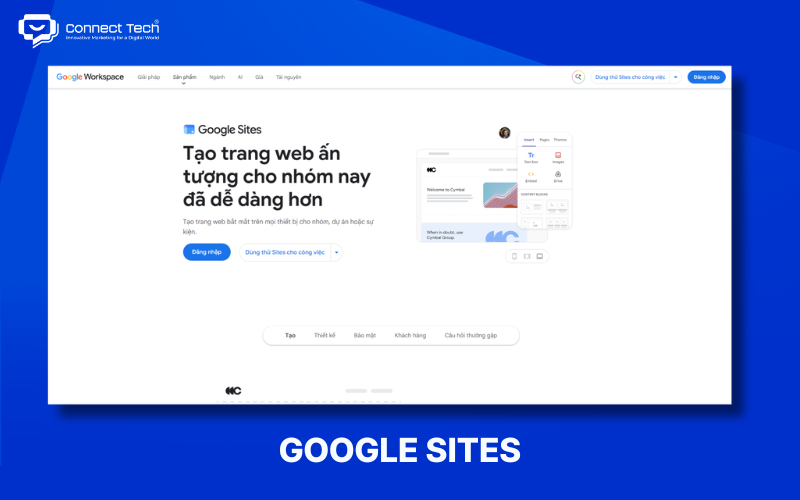
How to Design a Landing Page with Google Sites
Google Sites is a simple choice for users who want a landing page without coding or complex hosting management. It suits introductory pages, events, personal projects, and campaigns with basic technical needs.
Steps to create a landing page with Google Sites:
- Create a new site: Open Google Sites and choose a blank page or template.
- Build the layout: Add a hero section, images, content, benefits, and a CTA.
- Add a form: Embed Google Forms or other necessary content.
- Preview and publish: Check the layout on different devices, then publish the page.
How to Design a Sales Landing Page with Wix
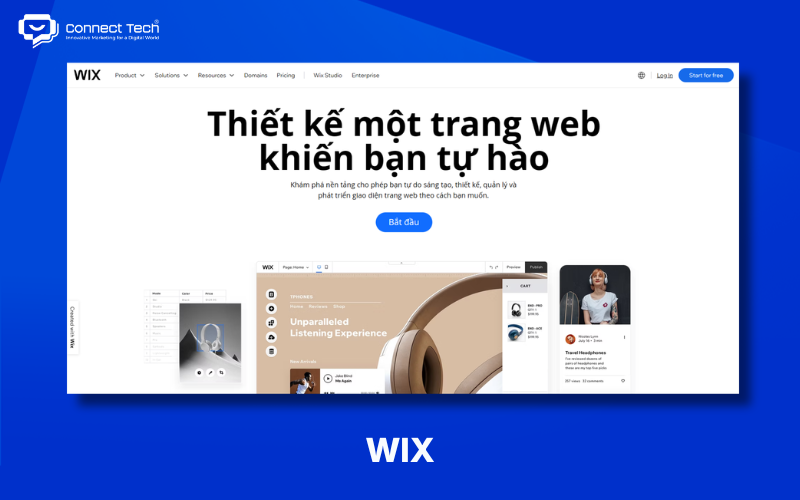
Wix offers landing page templates and a visual editor for users who want a polished page without programming. It supports landing pages for products, services, events, and marketing campaigns.
Steps to create a landing page with Wix:
- Choose a template: Browse Wix's landing page templates and select one that suits your needs.
- Edit the design: Change the headline, images, colors, typography, and copy.
- Add CTAs and forms: Include buttons, forms, testimonials, or other necessary sections.
- Check and publish: Preview the desktop and mobile versions, then publish.
How to Design a Landing Page with Mobio
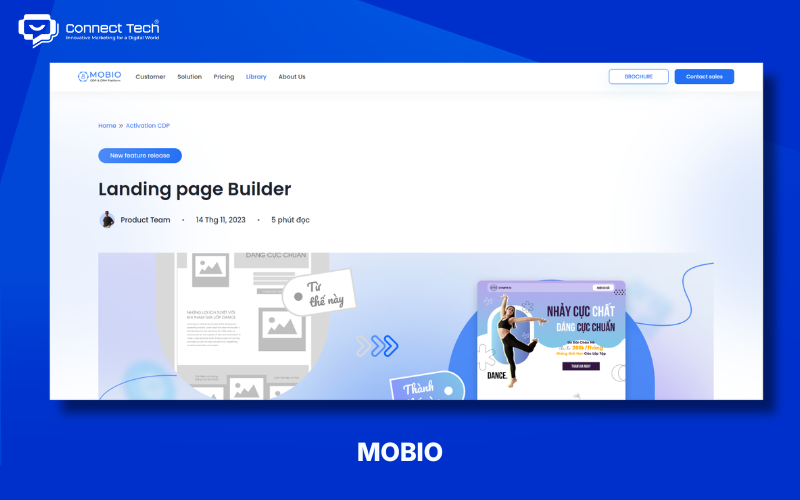
Mobio offers a Landing Page Builder for marketing teams to create pages, forms, and other elements that collect customer information. It suits campaigns that need to connect landing pages with lead management workflows.
Steps to create a landing page with Mobio:
- Create a landing page: Open Landing Page Builder and start a new page.
- Add elements: Include sections, text, images, buttons, and forms.
- Adjust responsive layouts: Check the design on desktop, tablet, and mobile.
- Check and publish: Review the content, forms, and necessary settings before publishing.
How to Design a Landing Page with SITE123
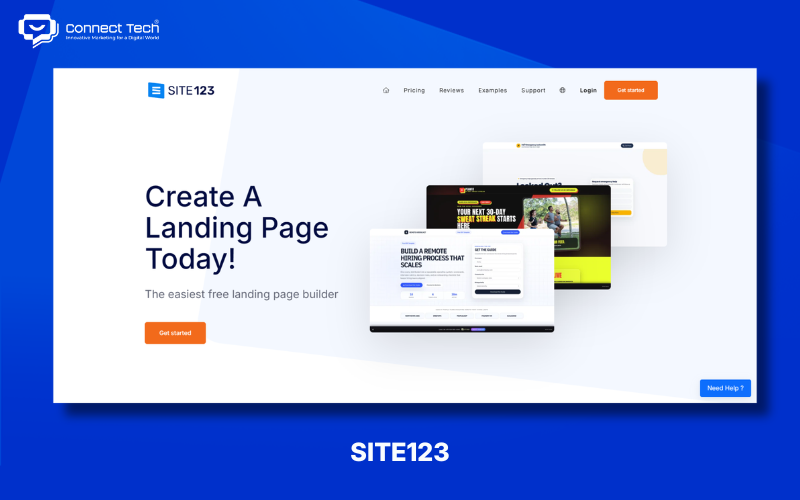
SITE123 suits beginners who want to make a landing page quickly with templates and a visual editor. It reduces the technical work by providing ready-made page structures and basic elements.
Steps to create a landing page with SITE123:
- Choose a template: Select one suited to your product, service, or campaign.
- Edit the content: Replace the logo, headline, images, text, and colors.
- Add CTAs and forms: Include buttons, a contact form, and other necessary sections.
- Preview and publish: Check the design, forms, and links before publishing.
How to Design a Landing Page with GetResponse
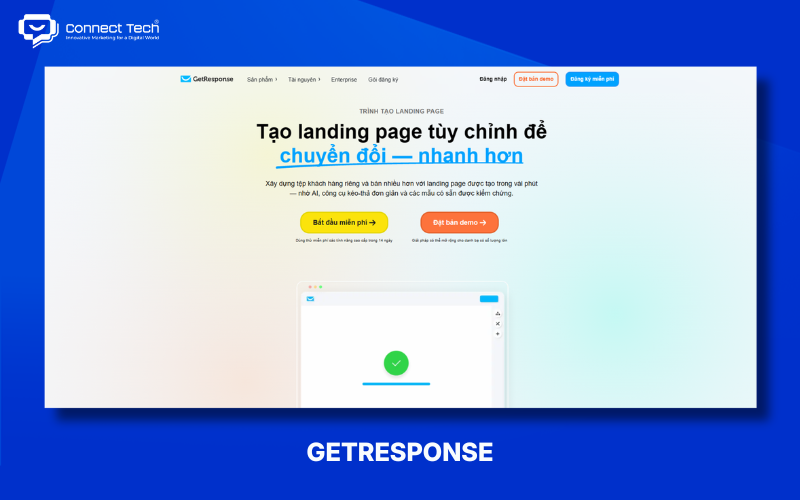
GetResponse suits lead generation landing pages because it combines page creation with forms, email marketing, automation, and tracking. Start with its AI Wizard or a template, then customize the page using drag-and-drop editing.
Steps to create a landing page with GetResponse:
- Create a landing page: Choose the AI Wizard or an existing template.
- Edit the design: Update the headline, images, copy, CTAs, and sections.
- Set up the form: Create a lead capture form and connect it to a contact list or email marketing workflow.
- Check and publish: Review responsive layouts, tracking, and workflows, then publish.
Note: GetResponse's free plan limits traffic and some advanced features. Check the current limits before running a large campaign.
The best way to design a landing page with free tools depends on your conversion goal and what each tool can do. LadiPage suits marketing and sales; Canva makes visual design simple; WordPress works well as part of a long-term website; Google Sites handles basic pages; Wix and SITE123 suit beginners; Mobio supports marketing operations; and GetResponse combines landing pages with email marketing.
If your business needs a custom professional landing page, Connect Tech can help with UX/UI, front-end development, responsive design, SEO, and marketing integrations so the page supports your lead generation, sales, and growth goals
Table of Contents
Related news

Top tools to check website speed and optimize effectively
Learn how to check website speed with accurate tools, analyze what slows your site down, and optimize website load speed to increase conversions.

How to Design a Landing Page with Free Tools
Learn how to design a landing page with LadiPage, Canva, WordPress, Wix, Google Sites, Mobio, SITE123, and GetResponse, from start to finish.

Top 8 AI Website Design Tools and How to Use Them
Explore eight AI website design tools, including Wix, Figma, Hostinger, and TeleportHQ, and learn how to create, edit, and optimize your website for SEO.

How to Design a Website with Google Sites: A Beginner's Guide
Learn how to build a Google Sites website from start to finish: create pages and menus, design the layout, add content, integrate Google tools, connect a custom domain, and publish.

How to Design a Website with Canva in 5 Easy Steps
Learn how to design a website with Canva, from choosing a template and editing the layout to basic SEO, connecting a domain, and publishing your site.
What is a responsive website? How to test & optimize for conversions
What is a responsive website? A guide on how to test display performance and responsive website design solutions to help increase conversion rates and save ads budget effectively.