Loading Table of Contents...
Top 8 AI Website Design Tools and How to Use Them
Explore eight AI website design tools, including Wix, Figma, Hostinger, and TeleportHQ, and learn how to create, edit, and optimize your website for SEO.
AI website design tools can generate a site's structure, visual design, content, and some features from natural-language descriptions, without requiring you to start with code. Wix AI, Figma Make, Hostinger, TeleportHQ, Durable, Kleap, Appy Pie, and Renderforest take different approaches, so it helps to understand how each one works before choosing.
Connect Tech covers eight AI website design tools through the practical steps of entering requirements, generating a site, editing it, checking the results, and publishing.
|
|
|
|
|
|
|
|
|
|
|
|
|
|
|
|
|
|
|
|
|
|
|
|
|
|
|
|
|
|
|
|
|
|
|
|
|
|
|
|
|
|
|
|
|
1. Wix AI Website Builder
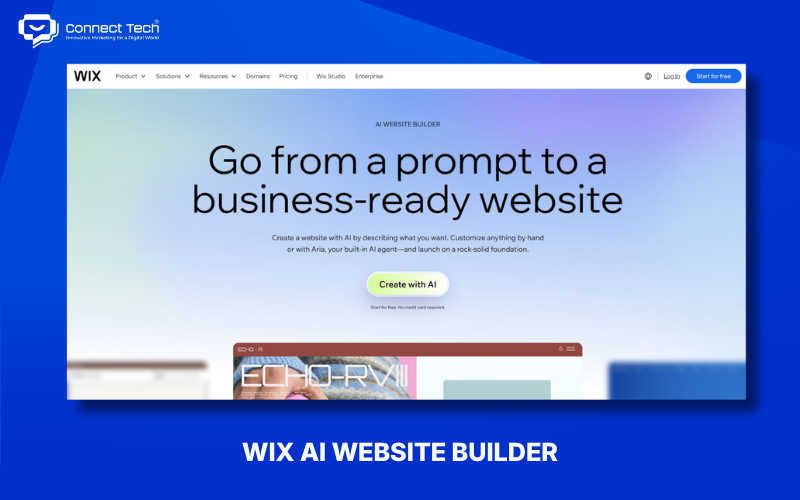
Wix AI Website Builder lets users describe their business, goals, and preferred style so AI can generate an initial site structure, content, and layout. Wix now combines its Aria AI agent with a visual editor, allowing users to switch between natural-language instructions and manual edits.
How to create a website with Wix AI:
- Describe your website idea to help Wix understand the project's goals and style. Include your business name, industry, target customers, conversion goals, and design preferences.
- Wix AI creates a website from the information you provide. It can generate a page structure, layout, and content based on the initial brief.
- Review the site structure to identify anything the AI got wrong. Check the menu, homepage, About, Services, Contact, CTAs, and other important sections.
- Use Aria to edit the website with natural-language instructions. You can ask it to create an About Us section, change content, adjust the design, or help with other site tasks.
- Use the drag-and-drop editor to refine details the AI did not handle correctly. Change text, images, colors, layouts, and visual elements.
- Check the mobile version to maintain a good experience across screen sizes. Wix says AI-generated websites adapt to different devices.
- Configure your domain, SEO, and business tools to get the site ready for use. Wix provides marketing and SEO tools in the same ecosystem.
Wix AI suits small businesses, freelancers, and people without coding skills because it combines prompt-based site creation with drag-and-drop editing. It supports business websites, landing pages, blogs, e-commerce, and business-related features.
Sample prompt for Wix AI: Create a website for an interior design company in Ho Chi Minh City. Its target customers are homeowners and mid- to high-end businesses. Include Home, About, Services, Projects, Blog, and Contact pages. Use a modern, minimalist style with white, black, and beige. The main CTA is “Book a Consultation.”
2. Figma Make
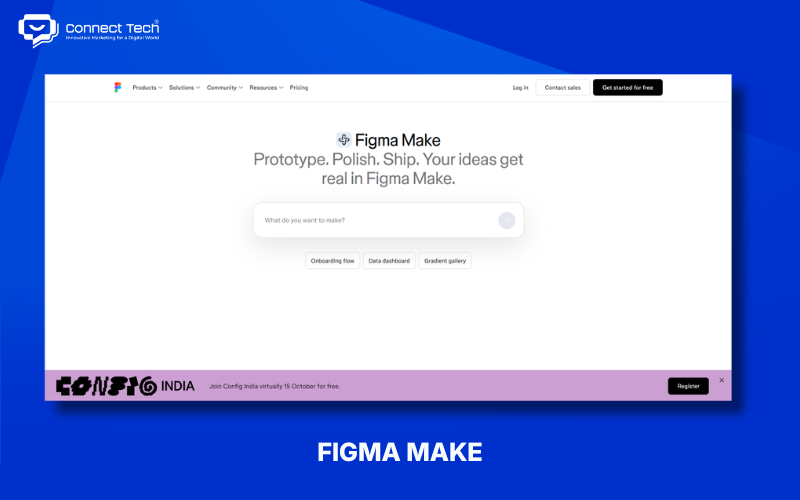
Figma Make turns prompts into layouts, content, interactions, and responsive websites. It therefore suits design and prototyping workflows more than a traditional website builder. Figma describes Make as an environment where users can start from a prompt or an existing frame, create interactive websites, refine them visually or through code, and then publish.
How to create a website with Figma Make:
- Start with a frame to give Figma an initial design canvas. Create a new frame or use one you already have in Figma Design.
- Describe the website in a prompt so the AI understands the required layout, sections, and content. You can specify a hero section, navigation, pricing table, form, testimonials, or interactive elements.
- Figma Make generates responsive layouts and interactions from the prompt. It can create a website with structure and interactive behavior rather than only a static interface image.
- Review visual hierarchy, typography, spacing, and user flows. Check both desktop and mobile before making further changes.
- Use follow-up prompts to refine the design without rebuilding it. Ask the AI to adjust sections, colors, animations, or page logic.
- Connect data so the prototype behaves more like a real website. Figma Make supports backend or data connections to test flows involving forms, product cards, or bookings.
Figma Make suits UI/UX designers, web designers, marketers, and product teams because it combines design, prototyping, and website creation in one environment. Users can also connect data or a backend to test how the site works with real data.
Sample prompt for Figma Make: Create a responsive landing page for a Vietnamese digital agency. Include hero section, services, case studies, testimonials, process, FAQ and contact form. Use a modern B2B style with navy, white and cyan. Prioritize clear visual hierarchy and conversion-focused CTAs.
3. Hostinger Website Builder
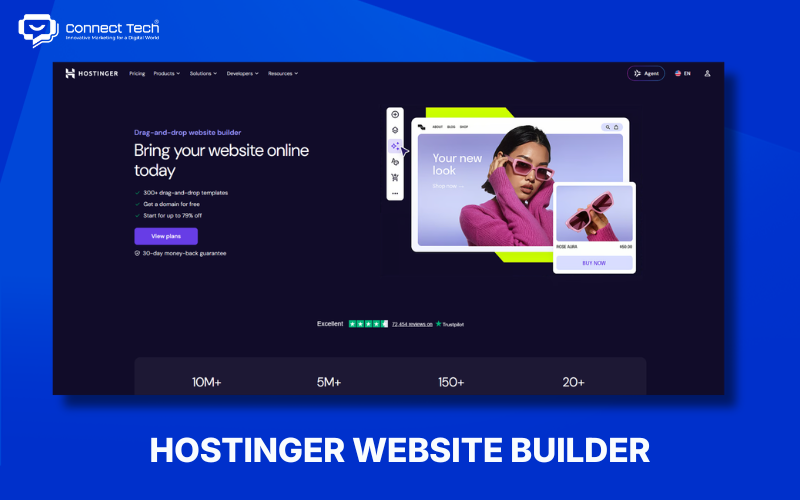
Hostinger AI Website Builder lets users describe an idea, generates a first version of the site, and then allows edits through an editor or conversation with AI. Hostinger currently offers two approaches: Manual mode with drag-and-drop editing and Agentic mode with a conversational workflow. Each offers a different level of control.
How to create a website with Hostinger AI:
- Choose a building method that fits your workflow. Manual mode combines AI with drag-and-drop editing, while Agentic mode lets you build and edit through conversation with AI.
- Describe the type of website and your business goals to guide the first version. Include your industry, audience, number of pages, style, and key features in the prompt.
- The AI generates a site structure from your brief. According to Hostinger, users can start with a prompt and receive a website ready for further editing.
- Use the editor to change layouts, colors, fonts, images, and content without coding. Manual mode particularly suits users who want visual control over individual elements.
- Use AI content and optimization tools to reduce manual work. Hostinger currently offers AI tools for logos, blog posts, product descriptions, and SEO.
- Check SEO, mobile layouts, and integrations before publishing. The platform includes tools such as Google Analytics, Google Tag Manager, Meta Pixel, and SEO features.
- Publish the site with hosting, SSL, and a domain according to your plan. Hostinger describes publishing as the final step after completing the design.
Hostinger AI suits individuals and small businesses looking to manage their website, hosting, domain, email, and marketing tools in one ecosystem. The platform currently supports business websites, portfolios, blogs, bookings, e-commerce, and interactive sites.
Sample prompt for Hostinger: Create a professional website for a Vietnamese software development company. Include Home, About Us, Services, Case Studies, Blog and Contact. Use a modern technology style with navy and cyan. The main CTA should be “Request a Consultation”. Optimize the layout for desktop and mobile.
4. TeleportHQ
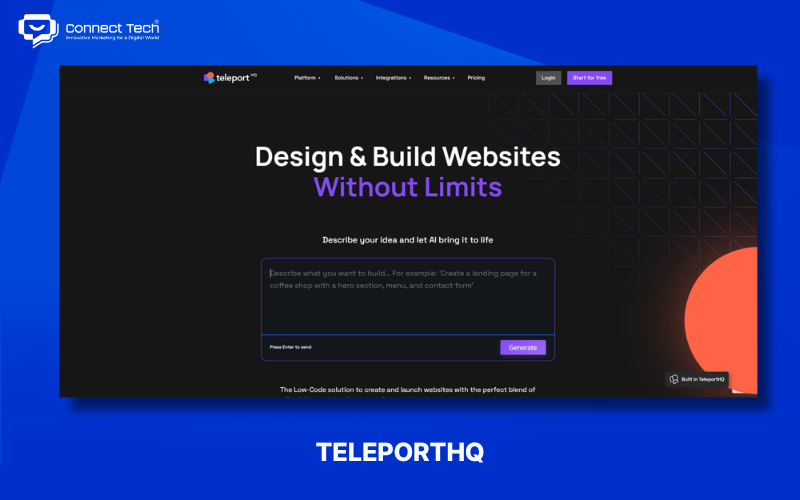
TeleportHQ turns prompts into site structure, content, and production-ready HTML/CSS, making it useful for people who want to combine AI generation with control over code. Users can generate a whole site or individual pages, then refine the result with a visual editor and conversational editing.
How to create a website with TeleportHQ:
- Define the website details to help the AI understand the project's scope. TeleportHQ lets you select a business category, mood or style, colors, fonts, and pages.
- Let the AI generate the structure and content to get an initial site quickly. It creates a responsive design and divides the site into sections you can edit.
- Review the style guide to keep the site visually consistent. New pages can inherit the colors, fonts, and layouts set earlier.
- Use conversational editing to request site changes in natural language. The AI applies the instructions and reports what it changed.
- Use the visual editor for smaller changes that are faster to make directly. Edit text, replace images, or adjust spacing.
- Add animations and interactions with AI support. TeleportHQ supports hover states, scroll animations, and customized button or image behavior.
- Review responsive layouts and code to confirm the site works across devices. TeleportHQ says its generated pages are mobile-ready and can produce HTML/CSS.
Sample prompt for TeleportHQ: Create a modern website for a Vietnamese architecture studio. Pages: Home, Projects, About, Services and Contact. Use an editorial minimalist style, white background, black typography and large project images. Add subtle hover effects to project cards and make the entire site responsive.
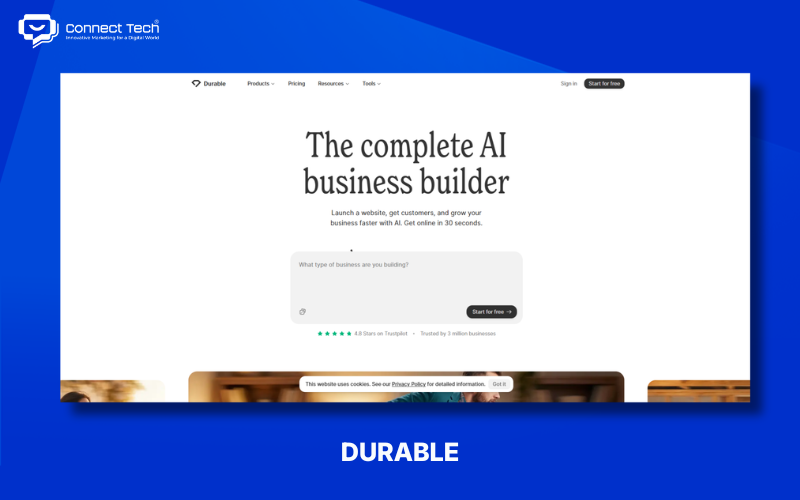
5. Durable
Durable condenses website creation into three steps: answer questions about your business, receive an AI-generated site, and edit it with a drag-and-drop tool. Durable says it uses business information to generate the website and lets users change layouts, images, headings, and fonts without coding.
How to create a website with Durable:
- Answer three questions about your business so Durable can gather the details it needs. Information about your work helps the system personalize the website.
- Let the AI generate a website with a complete starting structure instead of beginning with a blank page. Durable describes the result as a usable website you can continue editing.
- Use the drag-and-drop editor to control layouts, images, headings, and fonts without writing code.
- Use the AI copywriter to generate industry-specific content and reduce writing time. Durable says it can produce conversion-oriented copy tailored to a business category.
- Add SEO and business tools so the site supports operations as well as providing information. Durable currently promotes SEO, CRM, booking, and marketing automation features.
- Durable suits service businesses, freelancers, consultants, and local businesses because it emphasizes fast setup and business support. Its ecosystem also includes an AI copywriter, SEO, CRM, and marketing tools.
6. Kleap
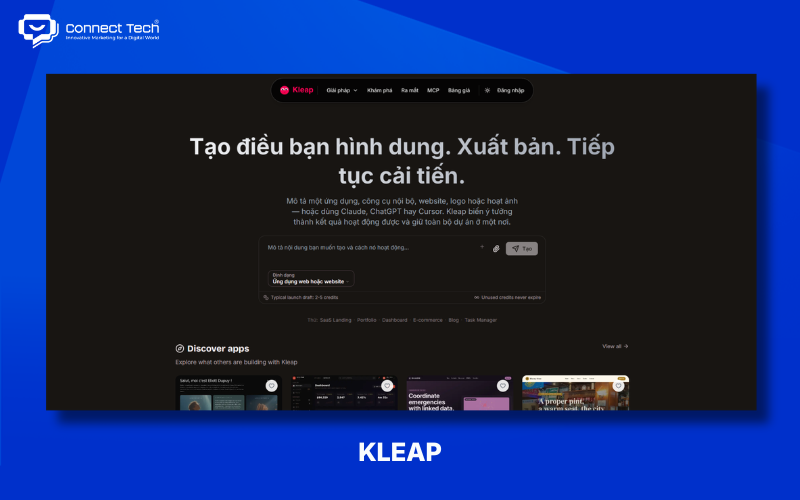
Kleap turns a natural-language description into a website with design, functionality, and logic, while allowing users to edit and export code. Kleap currently offers free hosting, SSL, custom domains depending on the plan, and SEO components such as meta tags, sitemaps, and structured data.
How to create a website with Kleap:
- Describe your website in a prompt to set its goals and structure. Include your business, customers, site type, pages, and main features.
- Let the AI create the design, features, and logic to turn the brief into a usable website. Kleap describes a process that develops an idea into a working product and continues to evolve it based on user feedback.
- Ask the AI for changes instead of rebuilding the site. You can continue giving feedback to develop the result.
- Check responsive layouts on desktop, tablet, and phone. Kleap says its designs are responsive by default.
- Check SEO elements before publishing. Kleap integrates meta tags, sitemaps, and structured data.
- Publish or export the code for more control over the finished result. Kleap allows code exports and custom domains according to the service plan.
Sample prompt for Kleap: Create a modern website for a Vietnamese architecture studio. Include Home, Projects, About, Services and Contact. Use a minimalist editorial style, large project images, white background and black typography. Add a contact form and a clear consultation CTA.
7. Appy Pie AI Website Builder
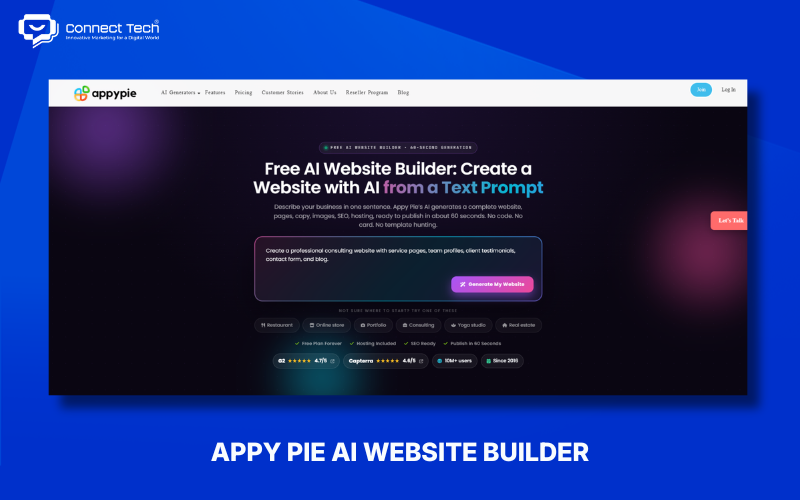
Appy Pie AI Website Builder turns a prompt into a website with initial content, images, layouts, and SEO tags. Users can then edit the result in a visual editor. Appy Pie currently describes a workflow from prompt entry and generation through editing and previews across devices to publishing on a subdomain or custom domain.
How to create a website with Appy Pie:
- Enter a prompt describing your business so Appy Pie can identify the site type and content to generate. Specify the industry, target customers, goals, pages, and CTAs.
- The AI generates initial Home, About, Services, Blog, and Contact pages, including content, images, and layouts. Appy Pie describes this as creating a complete site from one prompt.
- Use the visual editor to change colors and images, edit copy, and rearrange sections without coding.
- Preview the site on desktop, tablet, and mobile to catch design problems before publishing. Appy Pie provides views for these screen sizes.
- Review SEO elements to help search engines understand the content. Appy Pie says it can generate meta tags, sitemaps, schema markup, alt text, and Open Graph tags.
- Publish to an Appy Pie subdomain or custom domain. The platform provides free hosting and SSL for sites published on its system.
Sample prompt for Appy Pie: Create a professional website for a Vietnamese dental clinic. Include Home, About, Services, Doctors, Pricing, FAQ and Contact. Use a clean white and blue design. Add appointment booking and a prominent “Book an Appointment” CTA.
8. Renderforest
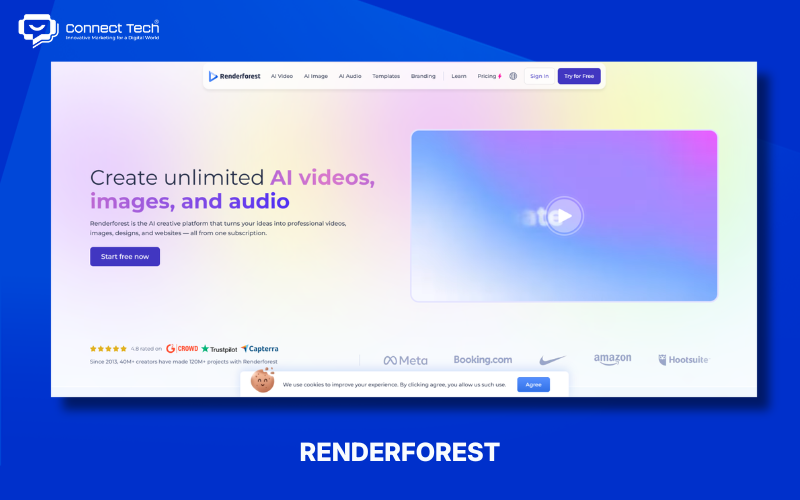
Renderforest AI Website Builder creates a responsive website from industry and business information, then lets users customize it before publishing. The platform currently guides users through generating, customizing, and launching a site. It supports categories including marketing, real estate, education, food, and services.
How to create a website with Renderforest:
- Select an industry to guide the website's structure and style. Categories include marketing, real estate, art and design, yoga, and online courses.
- Enter your business name and description to help the AI generate more relevant content. Describe your main services, customers, and website goals.
- Let the AI create a responsive first version without coding. Renderforest describes its AI Website Builder as a way to make a responsive site in minutes.
- Edit the layout, content, and images so the site accurately represents your brand. You can continue making changes after generation.
- Use Text Wizard to draft and improve copy, potentially reducing writing time. It can help with conversion- and SEO-oriented content.
- Review analytics and marketing integrations to prepare for measurement. Renderforest supports Google Analytics, Meta Pixel, Google Tag Manager, Google AdSense, and SEMrush keyword research.
- Publish after checking the content, design, and business information. Renderforest also offers a free website on its own subdomain through a free plan.
AI website design can shorten the path from an idea to a website, but you still need to define goals, structure, content, UX/UI, and technical requirements.
Wix and Hostinger suit website builder workflows. Figma Make suits design and prototyping; TeleportHQ combines AI generation with code controls. Durable, Kleap, Appy Pie, and Renderforest offer other approaches to business websites and smaller projects.
If your business is deciding between an AI website builder, an existing platform, and custom development, Connect Tech can recommend an approach based on your business goals, budget, SEO requirements, and plans to scale
Table of Contents
Related news

Top tools to check website speed and optimize effectively
Learn how to check website speed with accurate tools, analyze what slows your site down, and optimize website load speed to increase conversions.

How to Design a Landing Page with Free Tools
Learn how to design a landing page with LadiPage, Canva, WordPress, Wix, Google Sites, Mobio, SITE123, and GetResponse, from start to finish.

Top 8 AI Website Design Tools and How to Use Them
Explore eight AI website design tools, including Wix, Figma, Hostinger, and TeleportHQ, and learn how to create, edit, and optimize your website for SEO.

How to Design a Website with Google Sites: A Beginner's Guide
Learn how to build a Google Sites website from start to finish: create pages and menus, design the layout, add content, integrate Google tools, connect a custom domain, and publish.

How to Design a Website with Canva in 5 Easy Steps
Learn how to design a website with Canva, from choosing a template and editing the layout to basic SEO, connecting a domain, and publishing your site.
What is a responsive website? How to test & optimize for conversions
What is a responsive website? A guide on how to test display performance and responsive website design solutions to help increase conversion rates and save ads budget effectively.