Loading Table of Contents...
How to Design a Website with Google Sites: A Beginner's Guide
Learn how to build a Google Sites website from start to finish: create pages and menus, design the layout, add content, integrate Google tools, connect a custom domain, and publish.
You can design a website with Google Sites without knowing how to code. Its visual editor lets you create pages, adjust layouts, add content, and publish. The basic process involves creating a site, building pages and menus, designing the interface, embedding content, checking the layout, and publishing. Connect Tech walks you through each step and explains how to connect a custom domain once your site is ready.
7 Steps to Design a Website with Google Sites
Step 1: Open Google Sites and Create a New Website
Start with a blank page or an existing template, then customize the content for your purpose. Google Sites lets you create personal or business websites and offers a Template Gallery to make setup faster.
To create a new website:
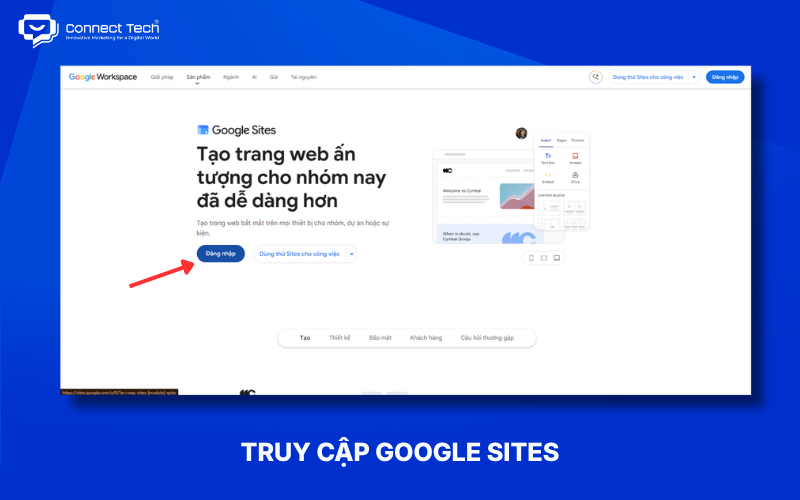
- Sign in to your Google account on a computer.
- Open Google Sites.
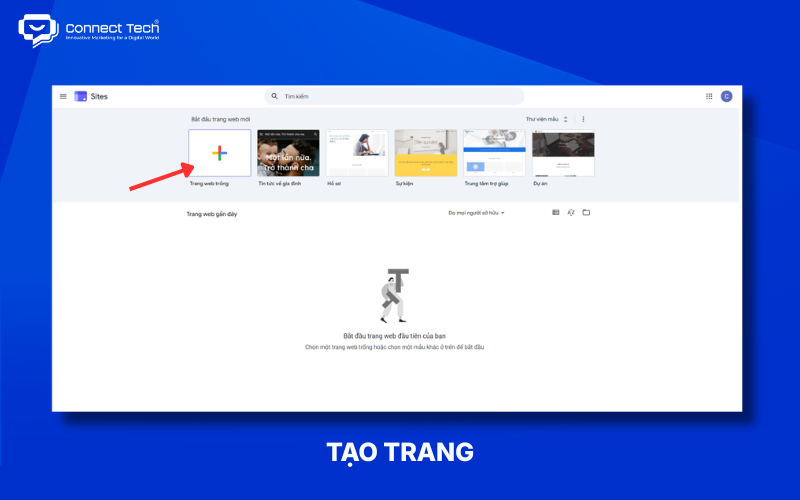
- Select Blank to start from scratch or open the Template Gallery to choose a design.
- Enter the site name in the upper-left corner.
- Add content and adjust the layout as needed.
Google Sites saves the website as a project you can keep editing before publishing. You do not have to finish all its content when you first create it.
Note: The site name helps you manage the project in Google Sites, while the title displayed on each page can be set separately. Choose a clear name from the start so you can distinguish between multiple sites.
Step 2: Create Pages and Plan the Menu Structure
Plan a clear page structure before adding too much content. A well-organized menu helps visitors find information with fewer steps.
Google Sites lets you create new pages and subpages, change the homepage, and reorder pages by dragging and dropping. It also supports up to five levels of subpages.
To create a page, open Pages → New page, enter a page name, and position it in the menu. You can also create menu sections to group related pages.
Use short, clear menu labels such as About, Services, Products, Projects, and Contact. Creative labels can be harder to understand if they do not indicate what a page contains.
Step 3: Design the Header, Footer, and Brand Identity
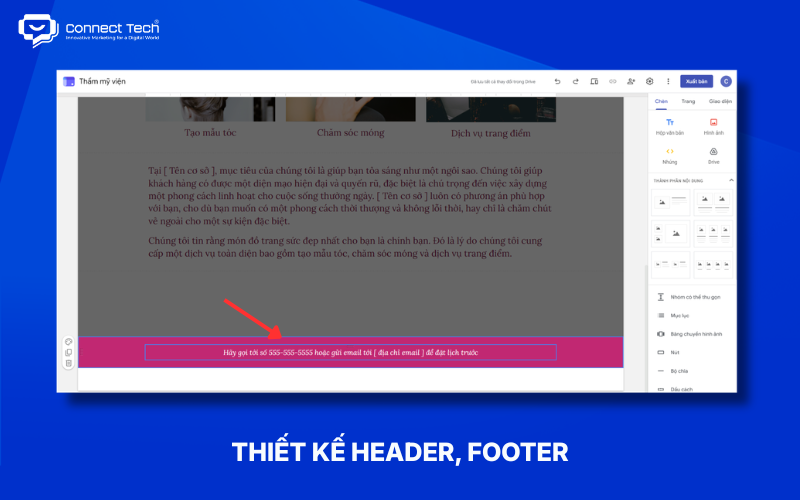
Make your Google Sites website look more professional by using consistent logos, colors, brand images, and identifying information in the header and footer. Google Sites lets you edit the header, replace its image, adjust its size, and add a footer.
The header should contain key elements such as:
- Brand logo.
- Website name.
- Main page title.
- A representative image, if needed.
- Navigation menu.
The footer can include:
- Business name.
- Address.
- Email address.
- Phone number.
- Social media links.
- Copyright information.
Use the same logo, favicon, brand colors, and visual style across pages to make the website feel consistent.
Tip: Avoid crowding the header. This area should help visitors recognize your brand and understand the page's main point as soon as they arrive.
Step 4: Add Content, Images, and Calls to Action
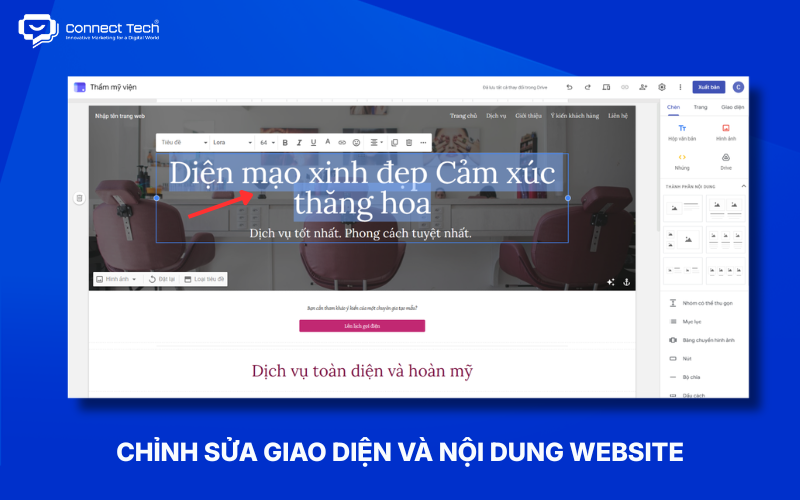
You can build pages in Google Sites using text boxes, images, buttons, layouts, and the editor's other ready-made elements.
Google Sites supports text, headings, lists, links, and images. You can add images in formats such as JPG, PNG, or GIF.
Give each page a specific purpose. For example:
- Homepage: Introduce the main value you offer and guide visitors toward the next action.
- Services page: Explain your services, benefits, and process.
- Product page: Present features, images, and essential information.
- Contact page: Provide a form, phone number, email address, and location.
A call to action (CTA) helps visitors take the next step. Examples include:
- Contact Us.
- Get Advice.
- View Services.
- View Products.
- Sign Up.
- Download a Guide.
Use headings and short paragraphs so visitors can scan the content. The editor offers different text styles and links, allowing you to create a clear layout without writing HTML.
Step 5: Integrate Google Forms, Maps, YouTube, and Drive
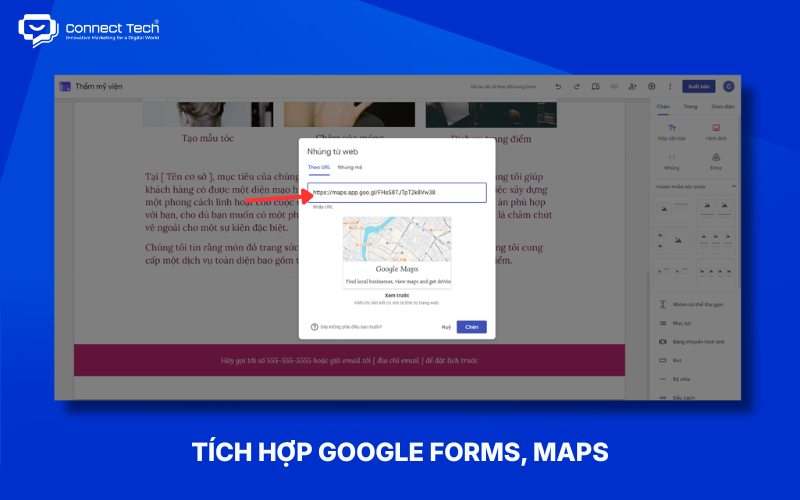
One advantage of Google Sites is its direct connection to Google's ecosystem. You can add features and content from Forms, Maps, YouTube, Drive, Docs, Sheets, Slides, and Calendar.
The Insert panel lets you embed different types of content from Google Workspace and other services.
Choose integrations based on your needs:
- Google Forms → Create contact, registration, or survey forms.
- Google Maps → Show your business location.
- YouTube → Display introductory, instructional, or product videos.
- Google Drive → Share documents.
- Google Docs → Show documents on the website.
- Google Sheets → Display data or tables.
- Google Calendar → Show an events calendar.
For example, a training center could use Google Sites to introduce courses, embed YouTube videos, collect registrations through Google Forms, and display its location with Google Maps.
Check the sharing permissions of files before publishing. Visitors can view embedded content only if its access settings allow them to do so.
Step 6: Preview and Test the Website
Prioritize the visitor experience and check the entire website before publishing.
Google Sites provides a Preview mode so you can inspect the site before it goes live and switch between display layouts.
Before publishing, check that:
- The menu works correctly.
- Pages open as expected.
- Buttons and links lead to the right destinations.
- Images display fully.
- The content has no spelling errors.
- CTAs are easy to see and use.
- Forms work.
- Google Maps and videos display correctly.
- The website is easy to read on small screens.
- The footer contains all necessary contact information.
Testing before publishing helps you find content and navigation errors before visitors encounter them.

Step 7: Publish the Website and Set Access Permissions
Finish your Google Sites website by publishing it, choosing a web address, and deciding who can access it.
Google Sites asks you to enter a web address when publishing. You can then set the Published site to Public or Restricted.
The basic process is:
- Select Publish.
- Enter the website address.
- Select Publish to make the site live.
- Open the published address to check it.
- Open Share to configure access.
If the website is for customers or the general public, make sure the Published site is set to Public. If it is for an internal team, you can limit viewers with Restricted access.
Google Sites also offers an option to request that search engines not display the site. Google notes that this is only a request and does not guarantee the site will stay out of public search results.
How to Use a Custom Domain with Google Sites
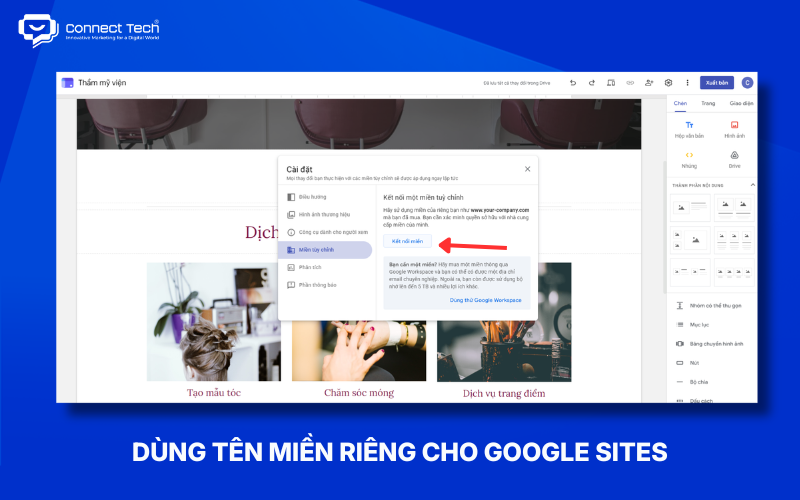
Google Sites supports custom domains, allowing you to use an address such as www.yourcompany.com instead of the default Google Sites address.
In Google Sites, go to Settings → Custom domains → Start setup to connect a domain.
The basic steps are:
- Open the website in Google Sites.
- Select Settings.
- Select Custom domains.
- Select Start setup.
- Enter the domain you want to use.
- Select Next.
- Follow the instructions to connect it through your domain registrar.
- Finish the setup and check the live site.
Google notes that only the site owner can connect a custom domain.
You do not have to guess which DNS records to add. Google provides instructions during setup, though the exact steps may vary by domain registrar.
Frequently Asked Questions About Google Sites Website Design
Is Google Sites Free to Use?
Google Sites lets users create and publish a website without buying a separate Google Sites hosting plan. A custom domain is different: you need to own a domain if you want a branded address.
You can therefore start with the address Google Sites provides without buying a domain. When you want a more professional address, connect a custom domain following Google's instructions.
Do I Need to Know How to Code to Use Google Sites?
You do not need programming skills to build a basic website with Google Sites. Its editor provides visual layout and content elements. Google also supports embedding HTML, CSS, and JavaScript, but that feature does not turn Google Sites into a fully customizable development environment.
This makes the platform suitable for beginners, teachers, students, freelancers, project teams, and small businesses needing a simple informational website.
Can a Google Sites Website Rank in Search?
A Google Sites website can appear in Google Search, but using Google Sites does not guarantee indexing or any particular ranking.
If search visibility matters, focus on useful content, clear headings, logical page structure, internal links, user experience, and site accessibility. Google Search Central also emphasizes that meeting basic requirements does not guarantee that a site will be crawled, indexed, or ranked.
Google Sites suits individuals, small teams, and businesses that need a simple informational website they can launch without coding. If your site needs advanced SEO, online sales, or custom features and integrations, consider a more specialized platform.
If your website is an important part of your business, Connect Tech can build a custom solution that combines UX/UI, SEO, and technology suited to your conversion goals
Table of Contents
Related news

Top tools to check website speed and optimize effectively
Learn how to check website speed with accurate tools, analyze what slows your site down, and optimize website load speed to increase conversions.

How to Design a Landing Page with Free Tools
Learn how to design a landing page with LadiPage, Canva, WordPress, Wix, Google Sites, Mobio, SITE123, and GetResponse, from start to finish.

Top 8 AI Website Design Tools and How to Use Them
Explore eight AI website design tools, including Wix, Figma, Hostinger, and TeleportHQ, and learn how to create, edit, and optimize your website for SEO.

How to Design a Website with Google Sites: A Beginner's Guide
Learn how to build a Google Sites website from start to finish: create pages and menus, design the layout, add content, integrate Google tools, connect a custom domain, and publish.

How to Design a Website with Canva in 5 Easy Steps
Learn how to design a website with Canva, from choosing a template and editing the layout to basic SEO, connecting a domain, and publishing your site.

What is a responsive website? How to test & optimize for conversions
What is a responsive website? A guide on how to test display performance and responsive website design solutions to help increase conversion rates and save ads budget effectively.